

Review a campaign page on desktop and Android before sharing
Use template previews and the Android dashboard to check the visitor journey at the size your customers will see.
By ShortFreeURL Team · 12 September 2026
Preview the content, then the journey
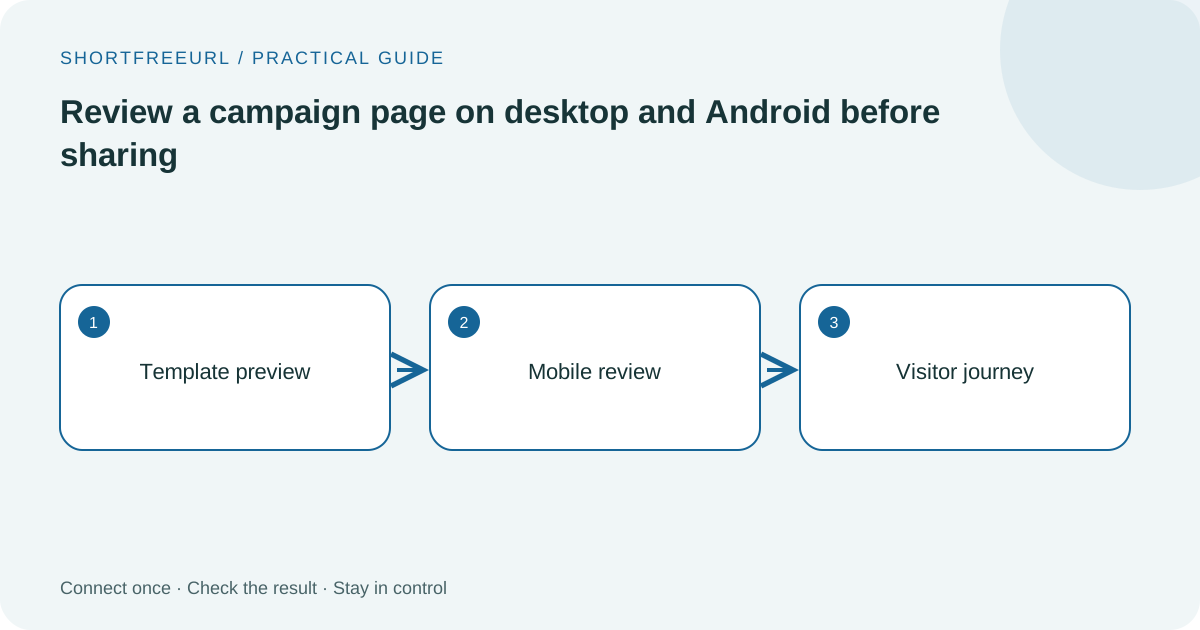
Start in Pages and select a template appropriate for the offer. The preview helps assess the arrangement, but the real destination links and contact details still need checking. Replace sample content and make the primary action easy to find.
A campaign page should answer what is offered and what happens next. Keep optional social links below the action that matters most. If a call button is important, try it on a phone; a desktop preview cannot reproduce the phone dialer experience.
Check the signed-in tools separately
The Android app loads the website dashboard using the account’s permissions. Website integration changes are therefore available through that dashboard; native Android behavior and operating-system compatibility are separate concerns. Use the supported versions and installation instructions on the downloads page.
Review the integration form, dropdowns and result messages on a narrow screen. Long provider IDs and error messages should remain readable. Avoid treating a stored connection badge as a substitute for a delivery check.
Finish with a visitor test
Open the published page outside the editor and follow its most important links. If using a QR code, scan a printed proof at the intended size and normal lighting. Keep a readable URL available as another way to reach the page.
Measure page views, button clicks and completed actions separately. A preview can reveal layout problems; a real destination check confirms the next step works. Repeat this small review when a campaign’s offer or destination changes.