

Reading Open Graph properties
Reading Open Graph properties with the ShortFreeURL REST API: GET /api/links/opengraph/42/918. Read saved Open Graph, Twitter and app-link metadata for this…
Complete this task in your own workspace. The screenshots use demonstration data.
1. Prepare your workspace and API key
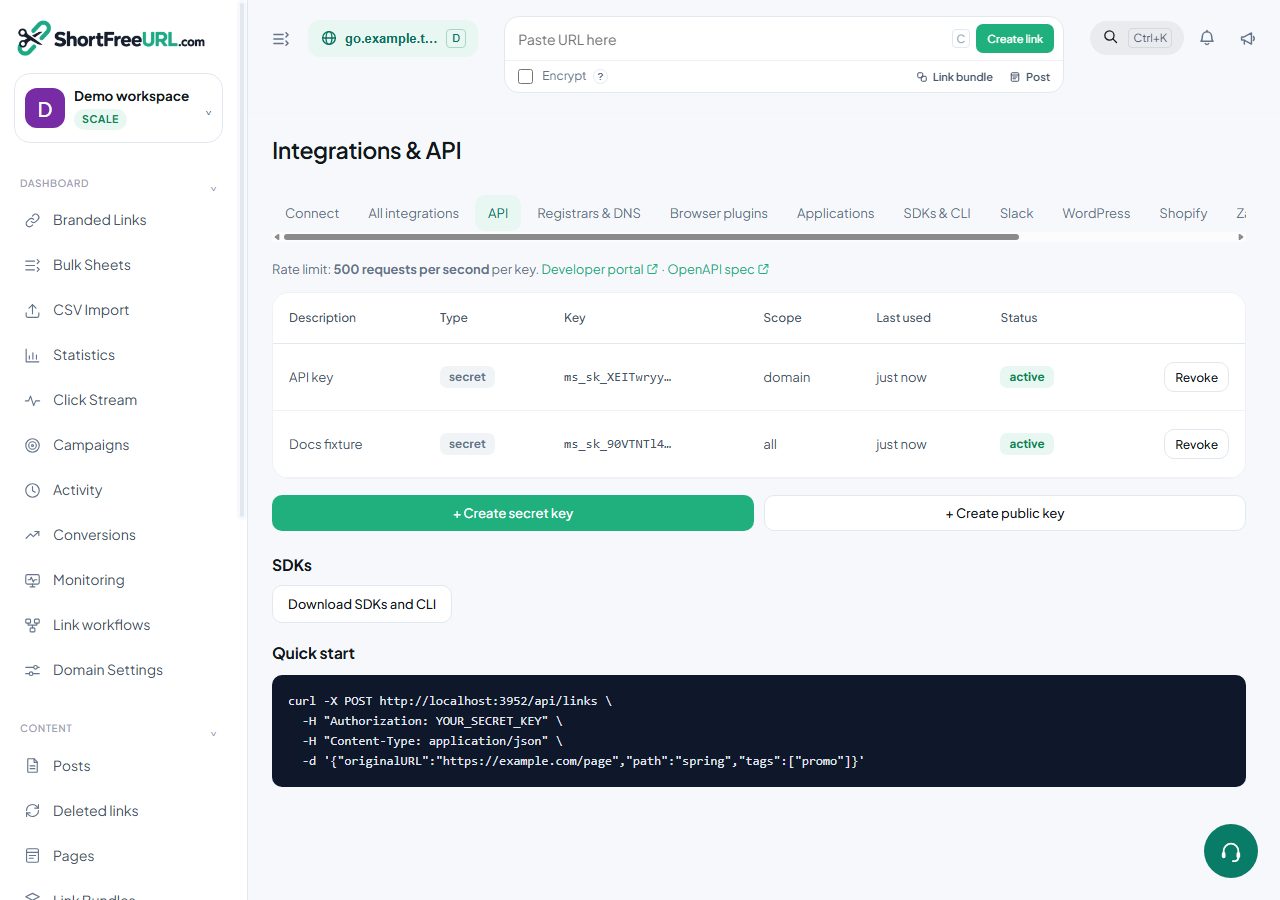
Open Dashboard → Integrations & API → API. Create a named secret key with the smallest required scope. Use a read-only key for reporting. Store it as SHORTFREEURL_API_KEY in your environment. The secret is shown once.
2. Find the correct resource
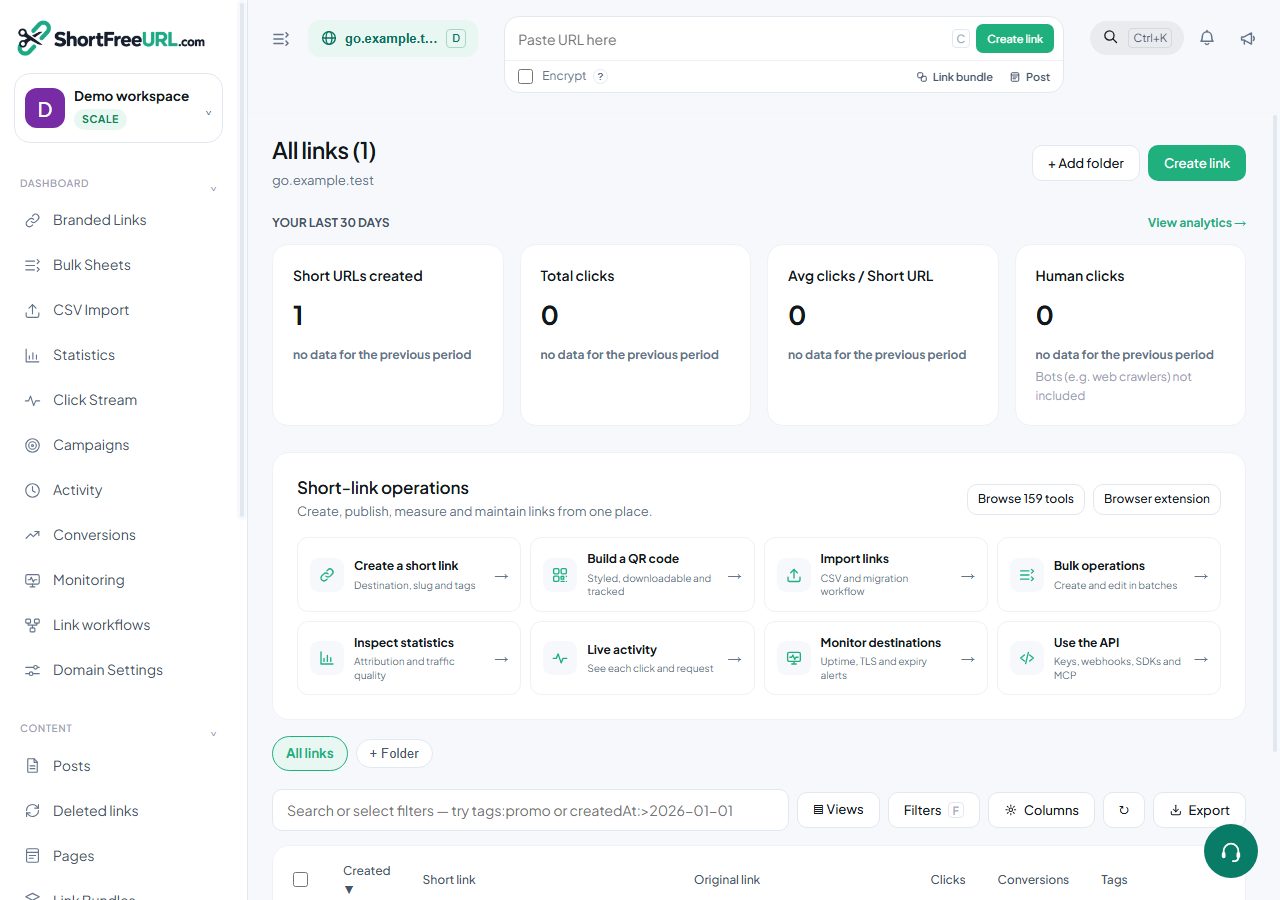
Open Branded Links. Select your domain. A link editor URL contains id=; use that link ID in requests. Get domain IDs from GET /api/domains. Replace example IDs 42 and 918 and the example hostname with your own values.
3. Review the operation
Read saved Open Graph, Twitter and app-link metadata for this link. The domain ID must match the link.
GET /api/links/opengraph/42/918. This reads data. Inspect upgradeRequired in responses: a successful update can leave unsupported fields unchanged.
4. Choose a language and run the request
Terminal setup with PowerShell, Bash and screenshots →
Shell uses curl. Node requires a runtime with fetch. Python uses its standard library. Other examples list their required HTTP library in code. Set the API host to this installation’s deployed HTTPS origin, then run the example from your terminal or backend.
curl --request GET 'https://api.shortfreeurl.com/api/links/opengraph/42/918' \
  --header "Authorization: Bearer $SHORTFREEURL_API_KEY"
const response = await fetch("https://api.shortfreeurl.com/api/links/opengraph/42/918", {
method: 'GET',
headers: { Authorization: 'Bearer ' + process.env.SHORTFREEURL_API_KEY, 'Content-Type': 'application/json' }
});
const text = await response.text();
// Key, token and webhook responses carry secrets: redact before logging.
console.log(response.status, text.replace(/"(key|apiKey|secret|signingSecret|token|accessToken|refreshToken|password)"\s*:\s*"[^"]*"/gi, '"$1":"[redacted]"'));require 'net/http'
require 'uri'
uri = URI('https://api.shortfreeurl.com/api/links/opengraph/42/918')
request = Net::HTTP::Get.new(uri)
request['Authorization'] = 'Bearer ' + ENV.fetch('SHORTFREEURL_API_KEY')
request['Content-Type'] = 'application/json'
response = Net::HTTP.start(uri.hostname, uri.port, use_ssl: uri.scheme == 'https') { |http| http.request(request) }
# Key, token and webhook responses carry secrets: redact before logging.
puts response.code, response.body.to_s.gsub(/"(key|apiKey|secret|signingSecret|token|accessToken|refreshToken|password)"\s*:\s*"[^"]*"/i, '"\1":"[redacted]"')<?php
$ch = curl_init('https://api.shortfreeurl.com/api/links/opengraph/42/918');
curl_setopt_array($ch, [
CURLOPT_CUSTOMREQUEST => 'GET',
CURLOPT_RETURNTRANSFER => true,
CURLOPT_HTTPHEADER => ['Authorization: Bearer '.getenv('SHORTFREEURL_API_KEY'), 'Content-Type: application/json']
]);
$body = (string) curl_exec($ch);
$status = curl_getinfo($ch, CURLINFO_RESPONSE_CODE);
curl_close($ch);
// Key, token and webhook responses carry secrets: redact before logging.
echo $status, "\n", preg_replace('/"(key|apiKey|secret|signingSecret|token|accessToken|refreshToken|password)"\s*:\s*"[^"]*"/i', '"$1":"[redacted]"', $body), "\n";import os
import re
import urllib.request
request = urllib.request.Request(
"https://api.shortfreeurl.com/api/links/opengraph/42/918",
method='GET',
headers={'Authorization': 'Bearer ' + os.environ['SHORTFREEURL_API_KEY'], 'Content-Type': 'application/json'}
)
with urllib.request.urlopen(request, timeout=30) as response:
text = response.read().decode()
# Key, token and webhook responses carry secrets: redact before logging.
print(response.status, re.sub(r'"(key|apiKey|secret|signingSecret|token|accessToken|refreshToken|password)"\s*:\s*"[^"]*"', r'"\1":"[redacted]"', text, flags=re.I))#include <stdio.h>
#include <stdlib.h>
#include <string.h>
#include <ctype.h>
#include <curl/curl.h>
struct buf { char *p; size_t n; };
static size_t collect(char *d, size_t s, size_t m, void *u) {
struct buf *b=(struct buf *)u; size_t k=s*m; char *q=(char *)realloc(b->p,b->n+k+1); if(!q)return 0;
b->p=q; memcpy(b->p+b->n,d,k); b->n+=k; b->p[b->n]=0; return k;
}
static int same(const char *a, const char *b, size_t l) { for(size_t i=0;i<l;i++) if(tolower((unsigned char)a[i])!=tolower((unsigned char)b[i])) return 0; return 1; }
/* Key, token and webhook responses carry secrets: redact before logging. */
static void print_redacted(const char *s) {
static const char *names[]={"key","apiKey","secret","signingSecret","token","accessToken","refreshToken","password"};
while(*s) {
int hit=0;
for(size_t i=0;*s=='"'&&!hit&&i<sizeof(names)/sizeof(*names);i++) {
size_t l=strlen(names[i]); const char *v=s+1+l;
if(!same(s+1,names[i],l)||*v!='"') continue;
for(v++;isspace((unsigned char)*v);v++);
if(*v++!=':') continue;
while(isspace((unsigned char)*v)) v++;
if(*v++!='"') continue;
while(*v&&*v!='"') v++;
if(*v!='"') continue;
printf("\"%.*s\":\"[redacted]\"",(int)l,s+1); s=v+1; hit=1;
}
if(!hit) putchar(*s++);
}
putchar('\n');
}
int main(void) {
const char *key=getenv("SHORTFREEURL_API_KEY"); if(!key)return 1;
CURL *c=curl_easy_init(); if(!c)return 1;
char auth[8192]; snprintf(auth,sizeof(auth),"Authorization: Bearer %s",key);
struct curl_slist *h=NULL; h=curl_slist_append(h,auth); h=curl_slist_append(h,"Content-Type: application/json");
struct buf body={NULL,0};
curl_easy_setopt(c,CURLOPT_URL,"https://api.shortfreeurl.com/api/links/opengraph/42/918");
curl_easy_setopt(c,CURLOPT_CUSTOMREQUEST,"GET");
curl_easy_setopt(c,CURLOPT_HTTPHEADER,h);
curl_easy_setopt(c,CURLOPT_TIMEOUT,30L);
curl_easy_setopt(c,CURLOPT_WRITEFUNCTION,collect);
curl_easy_setopt(c,CURLOPT_WRITEDATA,(void *)&body);
CURLcode result=curl_easy_perform(c);
long status=0; curl_easy_getinfo(c,CURLINFO_RESPONSE_CODE,&status);
printf("%ld\n",status); if(body.p) print_redacted(body.p);
free(body.p); curl_slist_free_all(h); curl_easy_cleanup(c); return result==CURLE_OK?0:1;
}using System;
using System.Net.Http;
using System.Text;
using System.Text.RegularExpressions;
using var client=new HttpClient { Timeout=TimeSpan.FromSeconds(30) };
using var request=new HttpRequestMessage(new HttpMethod("GET"), "https://api.shortfreeurl.com/api/links/opengraph/42/918");
request.Headers.Authorization=new System.Net.Http.Headers.AuthenticationHeaderValue("Bearer", Environment.GetEnvironmentVariable("SHORTFREEURL_API_KEY"));
using var response=await client.SendAsync(request);
Console.WriteLine((int)response.StatusCode);
// Key, token and webhook responses carry secrets: redact before logging.
var text=await response.Content.ReadAsStringAsync();
Console.WriteLine(Regex.Replace(text, "\"(key|apiKey|secret|signingSecret|token|accessToken|refreshToken|password)\"\\s*:\\s*\"[^\"]*\"", "\"$1\":\"[redacted]\"", RegexOptions.IgnoreCase));#include <cstdio>
#include <cstdlib>
#include <cstring>
#include <cctype>
#include <curl/curl.h>
struct buf { char *p; size_t n; };
static size_t collect(char *d, size_t s, size_t m, void *u) {
struct buf *b=(struct buf *)u; size_t k=s*m; char *q=(char *)realloc(b->p,b->n+k+1); if(!q)return 0;
b->p=q; memcpy(b->p+b->n,d,k); b->n+=k; b->p[b->n]=0; return k;
}
static int same(const char *a, const char *b, size_t l) { for(size_t i=0;i<l;i++) if(tolower((unsigned char)a[i])!=tolower((unsigned char)b[i])) return 0; return 1; }
/* Key, token and webhook responses carry secrets: redact before logging. */
static void print_redacted(const char *s) {
static const char *names[]={"key","apiKey","secret","signingSecret","token","accessToken","refreshToken","password"};
while(*s) {
int hit=0;
for(size_t i=0;*s=='"'&&!hit&&i<sizeof(names)/sizeof(*names);i++) {
size_t l=strlen(names[i]); const char *v=s+1+l;
if(!same(s+1,names[i],l)||*v!='"') continue;
for(v++;isspace((unsigned char)*v);v++);
if(*v++!=':') continue;
while(isspace((unsigned char)*v)) v++;
if(*v++!='"') continue;
while(*v&&*v!='"') v++;
if(*v!='"') continue;
printf("\"%.*s\":\"[redacted]\"",(int)l,s+1); s=v+1; hit=1;
}
if(!hit) putchar(*s++);
}
putchar('\n');
}
int main(void) {
const char *key=getenv("SHORTFREEURL_API_KEY"); if(!key)return 1;
CURL *c=curl_easy_init(); if(!c)return 1;
char auth[8192]; snprintf(auth,sizeof(auth),"Authorization: Bearer %s",key);
struct curl_slist *h=NULL; h=curl_slist_append(h,auth); h=curl_slist_append(h,"Content-Type: application/json");
struct buf body={NULL,0};
curl_easy_setopt(c,CURLOPT_URL,"https://api.shortfreeurl.com/api/links/opengraph/42/918");
curl_easy_setopt(c,CURLOPT_CUSTOMREQUEST,"GET");
curl_easy_setopt(c,CURLOPT_HTTPHEADER,h);
curl_easy_setopt(c,CURLOPT_TIMEOUT,30L);
curl_easy_setopt(c,CURLOPT_WRITEFUNCTION,collect);
curl_easy_setopt(c,CURLOPT_WRITEDATA,(void *)&body);
CURLcode result=curl_easy_perform(c);
long status=0; curl_easy_getinfo(c,CURLINFO_RESPONSE_CODE,&status);
printf("%ld\n",status); if(body.p) print_redacted(body.p);
free(body.p); curl_slist_free_all(h); curl_easy_cleanup(c); return result==CURLE_OK?0:1;
};; deps.edn: {:deps {clj-http/clj-http {:mvn/version "3.13.0"}}}
(require '[clj-http.client :as http])
(def response (http/request {:method :get
:url "https://api.shortfreeurl.com/api/links/opengraph/42/918"
:headers {"Authorization" (str "Bearer " (System/getenv "SHORTFREEURL_API_KEY")) "Content-Type" "application/json"}
:socket-timeout 30000 :connection-timeout 30000 :throw-exceptions false}))
;; Key, token and webhook responses carry secrets: redact before logging.
(println (:status response) (clojure.string/replace (str (:body response)) #"(?i)\"(key|apiKey|secret|signingSecret|token|accessToken|refreshToken|password)\"\s*:\s*\"[^\"]*\"" "\"$1\":\"[redacted]\""))require "http/client"
uri=URI.parse("https://api.shortfreeurl.com/api/links/opengraph/42/918")
headers=HTTP::Headers{"Authorization" => "Bearer " + ENV["SHORTFREEURL_API_KEY"], "Content-Type" => "application/json"}
client=HTTP::Client.new(uri)
client.read_timeout=30.seconds
response=client.exec("GET", uri.request_target, headers)
puts response.status_code
# Key, token and webhook responses carry secrets: redact before logging.
puts response.body.gsub(/"(key|apiKey|secret|signingSecret|token|accessToken|refreshToken|password)"\s*:\s*"[^"]*"/i) { |_, m| %("#{m[1]}":"[redacted]") }
client.closepackage main
import ("fmt"; "io"; "net/http"; "os"; "regexp"; "time")
func main() {
req,err:=http.NewRequest("GET","https://api.shortfreeurl.com/api/links/opengraph/42/918",nil); if err!=nil { panic(err) }
req.Header.Set("Authorization","Bearer "+os.Getenv("SHORTFREEURL_API_KEY"))
req.Header.Set("Content-Type","application/json")
client:=&http.Client{Timeout:30*time.Second}
res,err:=client.Do(req); if err!=nil { panic(err) }; defer res.Body.Close()
data,err:=io.ReadAll(res.Body); if err!=nil { panic(err) }
// Key, token and webhook responses carry secrets: redact before logging.
secret:=regexp.MustCompile("(?i)\"(key|apiKey|secret|signingSecret|token|accessToken|refreshToken|password)\"\\s*:\\s*\"[^\"]*\"")
fmt.Println(res.Status,secret.ReplaceAllString(string(data),"\"$1\":\"[redacted]\""))
}GET /api/links/opengraph/42/918 HTTP/1.1
Host: api.shortfreeurl.com
Authorization: Bearer <SHORTFREEURL_API_KEY>
Accept: application/json
import java.net.URI;
import java.net.http.*;
import java.time.Duration;
public class Example {
 public static void main(String[] args) throws Exception {
  var request=HttpRequest.newBuilder(URI.create("https://api.shortfreeurl.com/api/links/opengraph/42/918")).timeout(Duration.ofSeconds(30))
   .header("Authorization","Bearer "+System.getenv("SHORTFREEURL_API_KEY"))
   .header("Content-Type","application/json")
   .method("GET",HttpRequest.BodyPublishers.noBody()).build();
  var response=HttpClient.newHttpClient().send(request,HttpResponse.BodyHandlers.ofString());
  System.out.println(response.statusCode());
  // Key, token and webhook responses carry secrets: redact before logging.
  System.out.println(response.body().replaceAll("(?i)\"(key|apiKey|secret|signingSecret|token|accessToken|refreshToken|password)\"\\s*:\\s*\"[^\"]*\"", "\"$1\":\"[redacted]\""));
 }
}
{
"method": "GET",
"url": "https://api.shortfreeurl.com/api/links/opengraph/42/918",
"headers": {
"Authorization": "Bearer <SHORTFREEURL_API_KEY>",
"Content-Type": "application/json"
},
"note": "Request description; use an HTTP client to execute."
}// Kotlin/JVM, JDK 11+. Mobile apps should call your authenticated backend.
import java.net.URI
import java.net.http.*
import java.time.Duration
fun main() {
val request=HttpRequest.newBuilder(URI.create("https://api.shortfreeurl.com/api/links/opengraph/42/918"))
.timeout(Duration.ofSeconds(30))
.header("Authorization", "Bearer " + System.getenv("SHORTFREEURL_API_KEY"))
.header("Content-Type", "application/json")
.method("GET", HttpRequest.BodyPublishers.noBody())
.build()
val response=HttpClient.newHttpClient().send(request,HttpResponse.BodyHandlers.ofString())
println(response.statusCode())
// Key, token and webhook responses carry secrets: redact before logging.
println(response.body().replace(Regex("\"(key|apiKey|secret|signingSecret|token|accessToken|refreshToken|password)\"\\s*:\\s*\"[^\"]*\"", RegexOption.IGNORE_CASE), "\"\$1\":\"[redacted]\""))
}// Command-line Foundation example; keep secrets out of shipped iOS apps.
#import <Foundation/Foundation.h>
int main(void) { @autoreleasepool {
NSMutableURLRequest *request=[NSMutableURLRequest requestWithURL:[NSURL URLWithString:@"https://api.shortfreeurl.com/api/links/opengraph/42/918"]];
request.HTTPMethod=@"GET"; request.timeoutInterval=30;
NSString *key=NSProcessInfo.processInfo.environment[@"SHORTFREEURL_API_KEY"];
[request setValue:[@"Bearer " stringByAppendingString:key ?: @""] forHTTPHeaderField:@"Authorization"];
[request setValue:@"application/json" forHTTPHeaderField:@"Content-Type"];
dispatch_semaphore_t done=dispatch_semaphore_create(0);
[[[NSURLSession sharedSession] dataTaskWithRequest:request completionHandler:^(NSData *data, NSURLResponse *response, NSError *error) {
NSString *text=[[NSString alloc] initWithData:data ?: [NSData data] encoding:NSUTF8StringEncoding] ?: @"";
// Key, token and webhook responses carry secrets: redact before logging.
NSRegularExpression *secret=[NSRegularExpression regularExpressionWithPattern:@"\"(key|apiKey|secret|signingSecret|token|accessToken|refreshToken|password)\"\\s*:\\s*\"[^\"]*\"" options:NSRegularExpressionCaseInsensitive error:nil];
text=[secret stringByReplacingMatchesInString:text options:0 range:NSMakeRange(0,text.length) withTemplate:@"\"$1\":\"[redacted]\""];
NSLog(@"%ld %@",(long)[(NSHTTPURLResponse *)response statusCode],error ?: text);
dispatch_semaphore_signal(done);
}] resume];
dispatch_semaphore_wait(done, DISPATCH_TIME_FOREVER);
} return 0; }(* opam install cohttp-lwt-unix; link the str library for the redaction *)
open Lwt.Infix
let () = Lwt_main.run (
let headers=Cohttp.Header.of_list [("Authorization","Bearer " ^ Sys.getenv "SHORTFREEURL_API_KEY");("Content-Type","application/json")] in
Cohttp_lwt_unix.Client.call ~headers `GET (Uri.of_string "https://api.shortfreeurl.com/api/links/opengraph/42/918") >>= fun (response,body) ->
Cohttp_lwt.Body.to_string body >>= fun text ->
(* Key, token and webhook responses carry secrets: redact before logging. *)
let secret=Str.regexp_case_fold "\"\\(key\\|apiKey\\|secret\\|signingSecret\\|token\\|accessToken\\|refreshToken\\|password\\)\"[ \t\r\n]*:[ \t\r\n]*\"[^\"]*\"" in
Printf.printf "%d\n%s\n" (Cohttp.Code.code_of_status (Cohttp.Response.status response)) (Str.global_replace secret "\"\\1\":\"[redacted]\"" text); Lwt.return_unit)$headers=@{Authorization="Bearer $env:SHORTFREEURL_API_KEY"; 'Content-Type'='application/json'}
$response=Invoke-WebRequest -Uri 'https://api.shortfreeurl.com/api/links/opengraph/42/918' -Method GET -Headers $headers -TimeoutSec 30
$response.StatusCode
# Key, token and webhook responses carry secrets: redact before logging.
$response.Content -replace '"(key|apiKey|secret|signingSecret|token|accessToken|refreshToken|password)"\s*:\s*"[^"]*"', '"$1":"[redacted]"'# install.packages("httr2")
library(httr2)
request <- request("https://api.shortfreeurl.com/api/links/opengraph/42/918") |> req_method("GET") |>
req_headers(Authorization=paste("Bearer",Sys.getenv("SHORTFREEURL_API_KEY"))) |> req_timeout(30)
response <- req_perform(request)
resp_status(response)
# Key, token and webhook responses carry secrets: redact before logging.
cat(gsub('"(key|apiKey|secret|signingSecret|token|accessToken|refreshToken|password)"\\s*:\\s*"[^"]*"', '"\\1":"[redacted]"', resp_body_string(response), ignore.case=TRUE), "\n")// Cargo.toml: reqwest = { version = "0.12", features = ["blocking"] }, regex = "1"
use std::{env,time::Duration};
fn main() -> Result<(), Box<dyn std::error::Error>> {
let client=reqwest::blocking::Client::builder().timeout(Duration::from_secs(30)).build()?;
let response=client.request(reqwest::Method::GET,"https://api.shortfreeurl.com/api/links/opengraph/42/918")
.bearer_auth(env::var("SHORTFREEURL_API_KEY")?)
.header("Content-Type","application/json").send()?;
println!("{}",response.status());
// Key, token and webhook responses carry secrets: redact before logging.
let secret=regex::Regex::new(r#"(?i)"(key|apiKey|secret|signingSecret|token|accessToken|refreshToken|password)"\s*:\s*"[^"]*""#)?;
println!("{}",secret.replace_all(&response.text()?, r#""${1}":"[redacted]""#)); Ok(())
}// Swift 5.5+ command-line example. Never ship a secret in an iOS binary.
import Foundation
#if canImport(FoundationNetworking)
import FoundationNetworking
#endif
var request=URLRequest(url:URL(string:"https://api.shortfreeurl.com/api/links/opengraph/42/918")!)
request.httpMethod="GET"
request.timeoutInterval=30
request.setValue("Bearer " + (ProcessInfo.processInfo.environment["SHORTFREEURL_API_KEY"] ?? ""),forHTTPHeaderField:"Authorization")
request.setValue("application/json",forHTTPHeaderField:"Content-Type")
let (data,response)=try await URLSession.shared.data(for:request)
print((response as? HTTPURLResponse)?.statusCode ?? 0)
// Key, token and webhook responses carry secrets: redact before logging.
print((String(data:data,encoding:.utf8) ?? "").replacingOccurrences(of:#""(key|apiKey|secret|signingSecret|token|accessToken|refreshToken|password)"\s*:\s*"[^"]*""#, with:#""$1":"[redacted]""#, options:[.regularExpression,.caseInsensitive]))// Run on your server. Do not embed a secret key in public browser code.
const response = await fetch("https://api.shortfreeurl.com/api/links/opengraph/42/918", {
method: 'GET',
headers: { Authorization: 'Bearer ' + token, 'Content-Type': 'application/json' }
});
const text = await response.text();
// Key, token and webhook responses carry secrets: redact before logging.
console.log(response.status, text.replace(/"(key|apiKey|secret|signingSecret|token|accessToken|refreshToken|password)"\s*:\s*"[^"]*"/gi, '"$1":"[redacted]"'));5. Verify the result
- Read the HTTP status and response. For QR exports, save the returned image instead of parsing JSON.
- Check the returned IDs, filters and pagination. Empty analytics on a new link is valid.
- For targeting, expiry or password changes, make a controlled test visit. A real visit may add to analytics. For deletion, verify the record is absent before retrying.
6. Troubleshoot safely
- 401: check key expiry, revocation and workspace membership.
- 403/402: check role, key scope, feature access and subscription.
- 404: confirm the resource belongs to your workspace and domain.
- 429: wait for Retry-After, reduce concurrency and check plan limits.
- Timeout after a write: read the resource first; avoid creating duplicates.