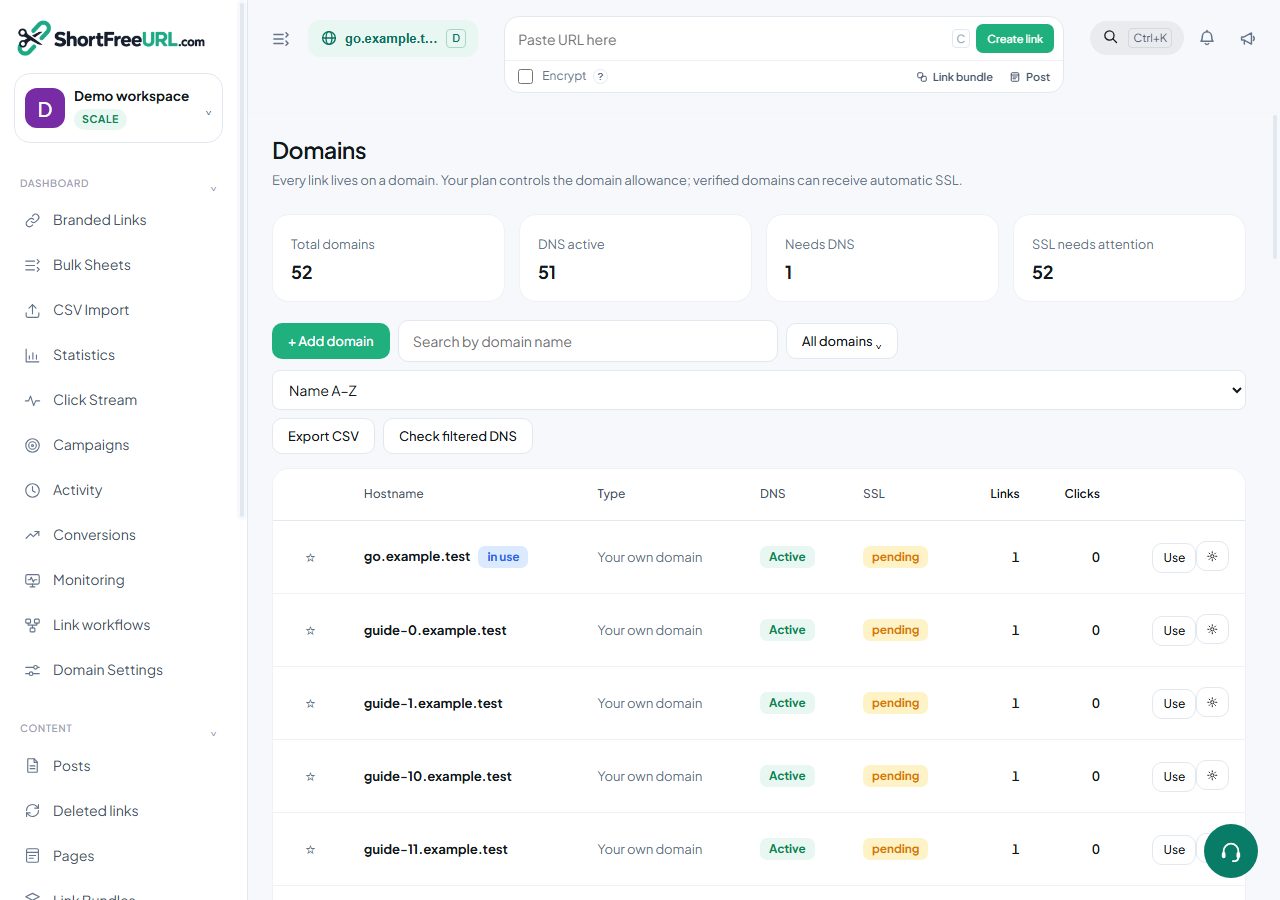
A domain stays pending until both DNS records resolve to the expected values. The settings panel shows what it can currently see next to what it expects, which usually identifies the problem immediately.
Read the state first
- Pending — nothing resolves here yet. The panel lists the A records it found. If that list is empty, the record has not been created or has not propagated. If it lists a different address, the record points somewhere else.
- Extra records — the A record is right but
wwwis not pointing here. Links work; thewwwform does not. - Active — both records resolve.
Press Refresh DNS check after any change rather than waiting for a background job.
The usual causes
- The record is in the wrong zone. Adding
goinside thego.example.comzone createsgo.go.example.com. Check the fully qualified name your provider shows after saving. - Propagation. Most providers publish within fifteen minutes, but a long TTL on a previous record can hold the old answer for hours. Query an authoritative nameserver directly to see the truth.
- A proxying CDN. An orange-cloud style proxy in front of the A record can prevent certificate issuance. Set the record to DNS-only until the domain is active.
- A conflicting record. DNS does not allow a CNAME alongside other records at the same name. Remove the old CNAME.
- A CAA record. A restrictive CAA record on the parent domain blocks issuance. Add the issuer used here or remove the restriction.
- The apex problem. If your website already lives at the apex, do not repoint the apex A record — use a subdomain.
SSL after activation
Certificates are issued automatically once the records resolve, which takes a few minutes. If you uploaded a custom certificate, automatic renewal is stopped while it is in place — an expired custom certificate presents as a browser warning rather than a DNS problem.
When DNS is right and it still fails
Check that the domain is not already connected to another organization, and that it is not still attached at a previous provider intercepting the request. If you connected a registrar account, use Push to rewrite the records — a hand-edit may have replaced them.
Find this in your dashboard
- Sign in and select the workspace and domain you want to manage.
- Open Domains. Review the article’s steps and your plan’s available controls.
- Save your changes, reopen the record and verify the saved result. For routing changes, check the short link with a test visit.