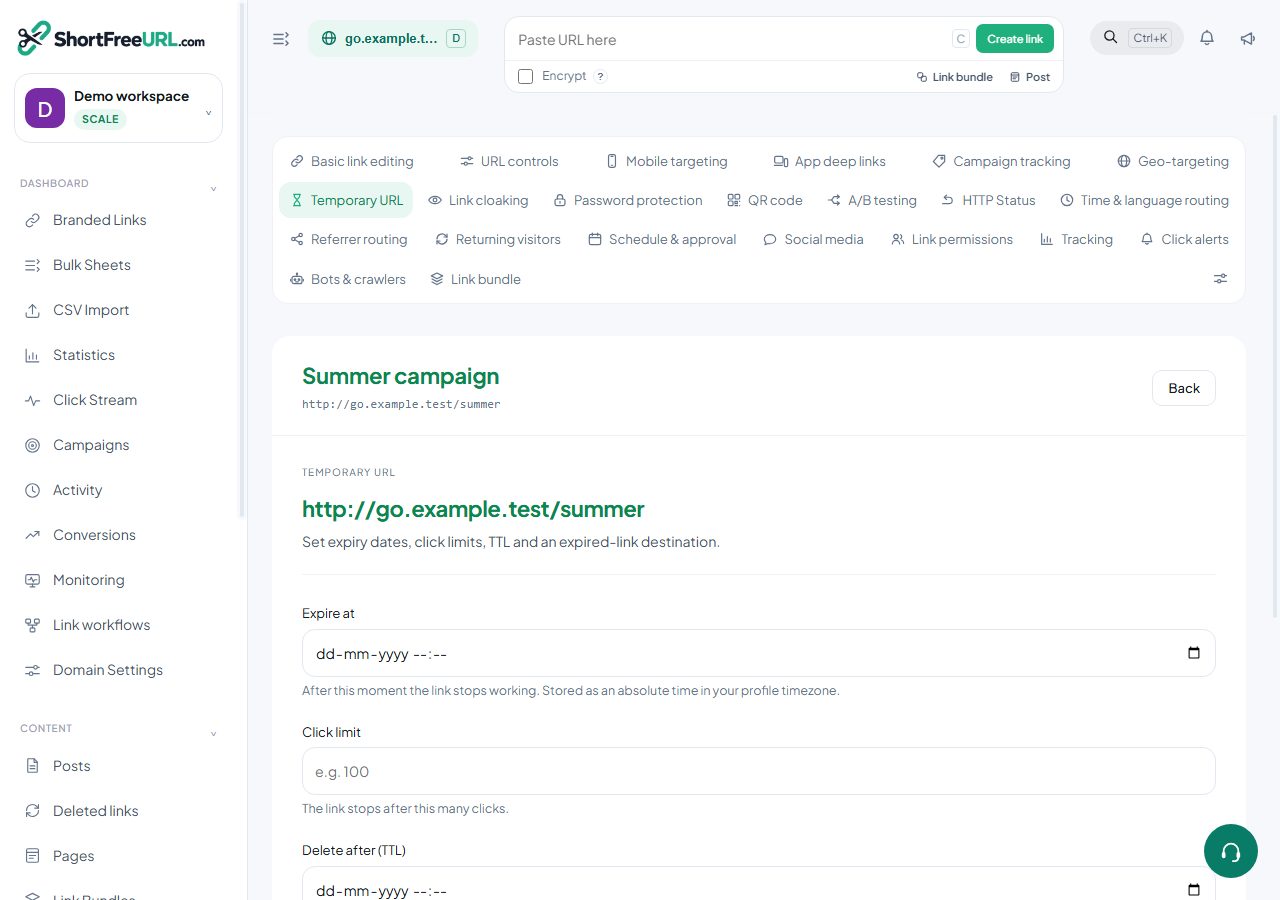
The Temporary URL tab holds four separate mechanisms. They can be combined, and they do different things.
Expire at
An absolute moment after which the link stops working. Stored as an absolute time and displayed in your profile timezone. Right for an offer that ends, an event registration that closes, or a document that should not outlive a deal.
Click limit
The link stops after a given number of clicks. Useful for a limited allocation — the first hundred people through the door.
Be careful here: preview bots from messaging apps and social networks fetch the link before showing a card, and those fetches consume clicks against the limit. Set the robots policy to "Don't follow short links" in Domain settings, and pad the limit, or a link shared into a busy group chat can exhaust itself before a person clicks it.
Delete after (TTL)
Where expiry stops the redirect, TTL deletes the link entirely at the given time. It is the right tool for generated links — one-time invitations, per-order tracking, anything created by an integration in volume — where the link has no value after its moment and you do not want a million dead rows.
Folder defaults can set a TTL automatically for every link created in a folder, which is easier than remembering to set it per link.
Fallback destination
Where expired traffic goes. Without one, visitors get a themed "link expired" page styled with your domain's colours, served with a 410. With one, they are redirected. A fallback is almost always kinder: send people to the current offer, or to the page the expired thing lived on.
What expiry does not do
An expired link is not deleted, and its statistics stay intact — you can still see what it did before it stopped. It can be un-expired by clearing the date, and the same slug keeps working for anyone who saved it. If you need the link genuinely gone, delete it, and remember that the slug becomes available for reuse.
Expiration, click limits, TTL and the fallback destination are on the Growth plan and above. On plans without them they are stripped on save and the response names what was dropped.
Find this in your dashboard
- Sign in and select the workspace and domain you want to manage.
- Open Temporary URL. Review the article’s steps and your plan’s available controls.
- Save your changes, reopen the record and verify the saved result. For routing changes, check the short link with a test visit.