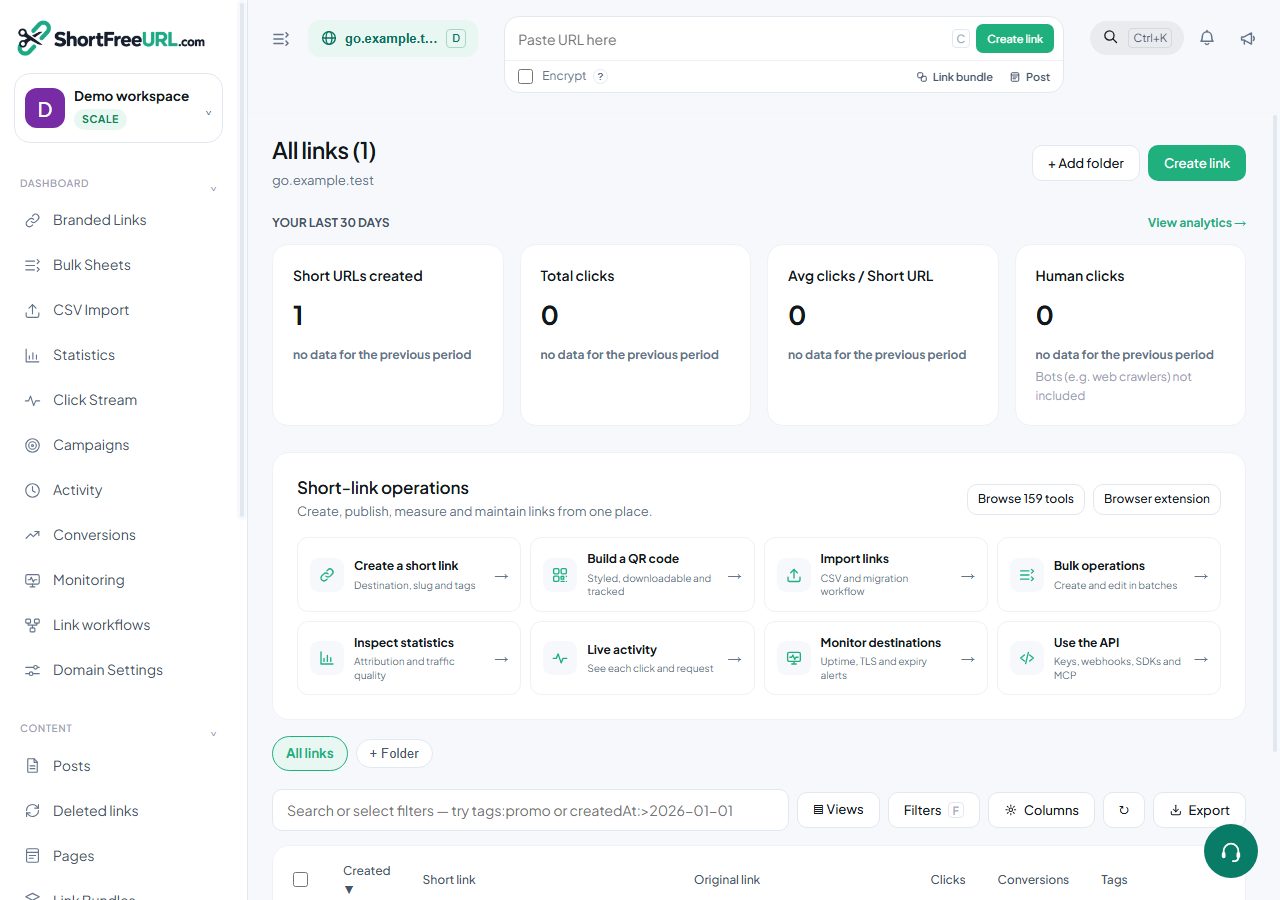
Folders and tags solve different problems. A link lives in exactly one folder and carries any number of tags. Use folders for ownership and defaults, tags for cross-cutting description.
Folders
Folders belong to a domain. Moving a link into a folder is a single field in the editor, or a bulk action from the links table. The useful part is not the grouping — it is the defaults.
A folder can carry:
- a redirect type,
- a QR style,
- a custom tracking snippet,
- all five UTM values,
- an auto-delete period.
Every link created inside the folder picks these up unless the create request sets its own value. That is how you make a team tag its traffic consistently without asking anyone to remember: create the folder, set utm_source and utm_medium on it, and every link made there arrives correctly labelled.
Defaults apply at creation. Changing a folder default later does not rewrite links already inside it — use a bulk UTM update for that.
Tags
Tags are free text with no hierarchy. The tag list is derived from the links themselves, so it doubles as autocomplete and there is no separate place to manage it. A tag with no links stops existing.
Tags are searchable with tag:promo, filterable in statistics, and settable in bulk from the links table. The AI tag suggestion button in the editor proposes tags from the destination page's content, which is a reasonable starting point on an import of a few hundred links with no tags at all.
A workable convention
- One folder per team, campaign or client — whatever matches who owns the link.
- Tags for everything that cuts across folders: channel, quarter, asset type, language.
- Set UTM defaults on the folder, not on each link.
- Put an auto-delete period on folders holding generated or one-time links.
Limits
The free plan includes a small number of folders; each paid plan raises the cap. Deleting a folder does not delete its links — they simply lose the folder assignment, and keep the defaults they were created with.
Find this in your dashboard
- Sign in and select the workspace and domain you want to manage.
- Open Branded Links. Review the article’s steps and your plan’s available controls.
- Save your changes, reopen the record and verify the saved result. For routing changes, check the short link with a test visit.