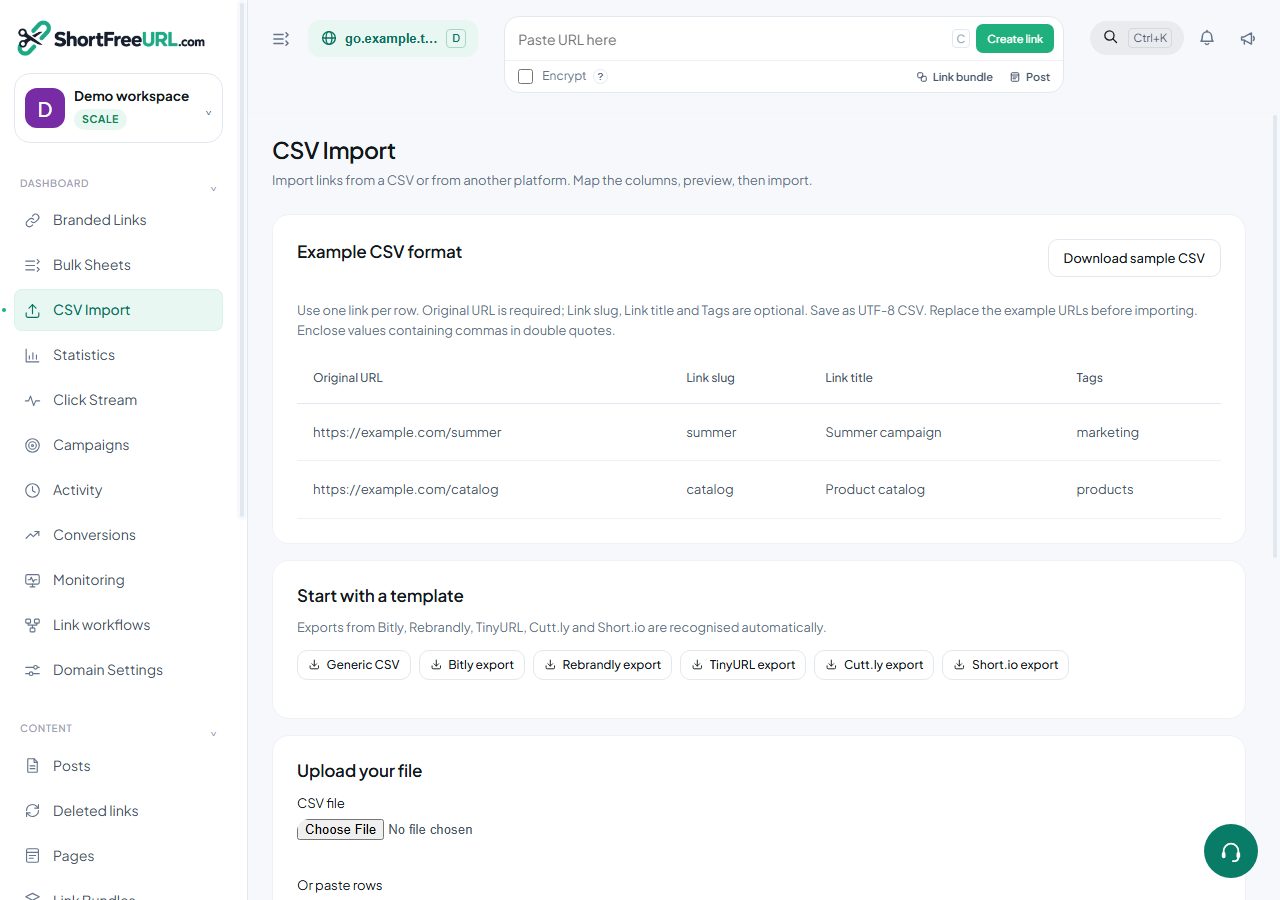
The bulk endpoints exist because creating ten thousand links one request at a time is slow, hits rate limits, and gives you no useful error report.
The canonical columns
Bulk work uses one column layout everywhere — the CSV import, the in-browser sheet, and the exports:
Short URL, Status, Id, Original URL, Link slug, Cloaking,
UTM Source, UTM Medium, UTM Campaign, UTM Term, UTM Content,
Expires at, Clicks limit, Expiration link, TTL, Tags, Link title,
iOS Link, Android Link, Creation date, Delete, Folder, Redirect type, Password
GET /api/bulk/templates returns this list, the recognised import templates and the full header mapping. GET /api/bulk/template.csv?kind=… downloads an empty template.
Importing
POST /api/bulk/preview accepts a file or pasted text and returns the detected headers, the field each maps to, the total row count and the first twenty rows. Correct the mapping, then POST /api/bulk/import with the same file plus the mapping to apply it. Imports are capped at 10,000 rows per file.
Header mapping is automatic for exports from several common shorteners: Bitlink, slashtag, alias, keyword, back-half and custom back-half all map to the slug; destination, long URL and original URL map to the target. Tags split on commas, semicolons or pipes.
The sheet
GET /api/bulk/sheet returns every link on a domain in the canonical layout. Edit rows and send them to POST /api/bulk/sheet/apply. The rules are simple and worth knowing:
- A row with an
Idupdates that link. - A row without an
Idand with an Original URL creates a link. - A row with
1in theDeletecolumn deletes that link. - Anything else is skipped.
The response reports created, updated, deleted and failed counts plus per-row errors, and the run is recorded as a job.
Jobs and errors
GET /api/bulk/jobs lists import and bulk runs with their status and counts. GET /api/bulk/jobs/:id/errors.csv downloads the failed rows with their error messages, so you can fix and re-import only those.
Exports
GET /api/bulk/export.csv produces the same layout for offline editing, and GET /api/export/links exports links for backup.
Find this in your dashboard
- Sign in and select the workspace and domain you want to manage.
- Open CSV Import. Review the article’s steps and your plan’s available controls.
- Save your changes, reopen the record and verify the saved result. For routing changes, check the short link with a test visit.