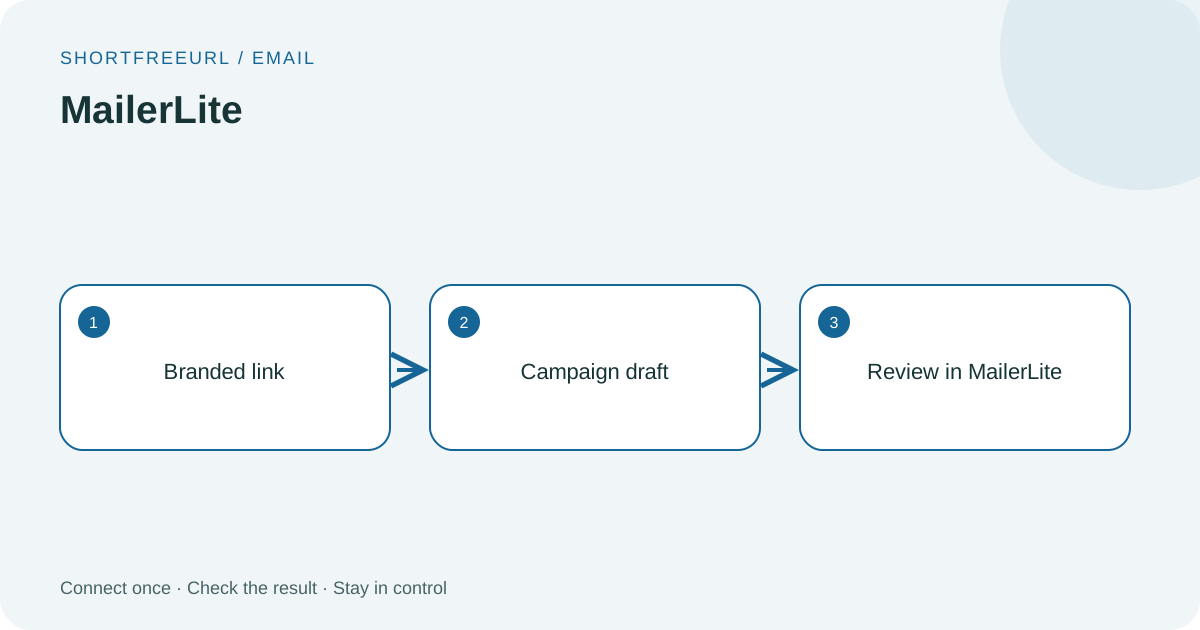
Create newsletter drafts containing your branded short links.
What this connection does
Connect your API key, choose a list and verified sender, then create a draft from any workspace link. Automatic draft creation is optional. Review and send from your email provider; this connector never sends or schedules a campaign.
Before you start
Use a workspace Owner or Admin account. Prepare access to your provider account. Google login requires the site administrator’s OAuth application to be configured first; API-key connections need the key from your own provider account.
Setup
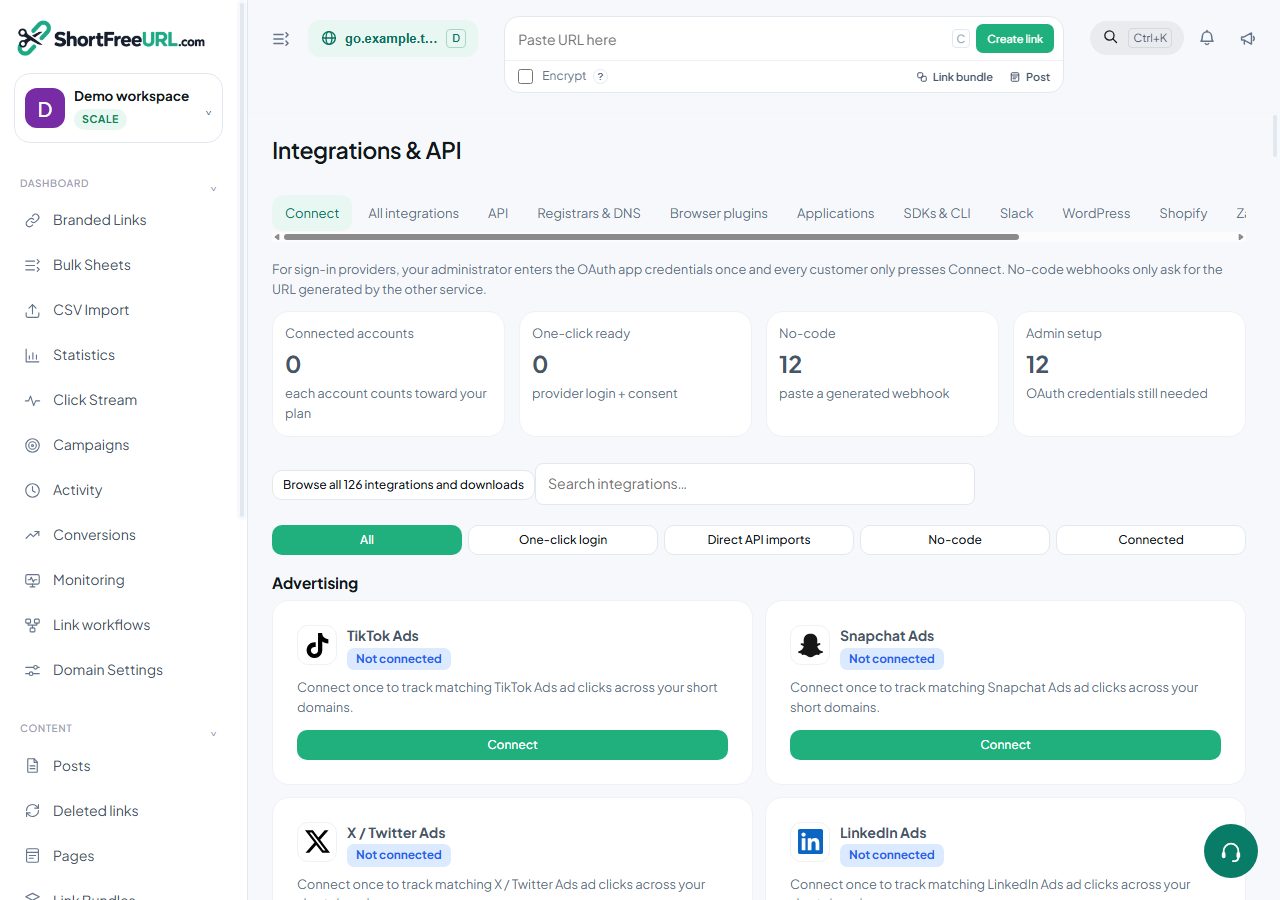
- Open Integrations & API in your workspace, find MailerLite and choose Connect. MailerLite → Integrations → Developer API → Generate token.
- Paste your API key. Choose Check connection to read the account’s available lists. A saved key alone is not proof that it is valid.
- Choose Configure. Select an audience, list or group and enter the verified sender details. SendGrid uses its sender ID and unsubscribe group ID. Mailchimp requires an audience.
- Choose Create email draft, search your active workspace links and select one. The result shows the provider draft ID. Review the contents and recipients inside MailerLite before sending.
- For automatic drafts, set Create draft when a short link is created to On in Configure. Turn it Off to stop future automatic drafts. Sending remains a separate action in your email provider.
Data and verification
Out: selected short URL, link title, sender details and chosen list ID.
In: list names and IDs, provider draft ID and delivery outcome.
This connector does not import subscriber addresses or send campaigns.
Troubleshooting
A connected badge means credentials have been saved. Run the available connection check and inspect Deliveries for the provider response. For a 401/403, check key permissions and account ownership. For quota or rate limits, check the provider dashboard before retrying. Never paste a secret into a public support message.
Can I change credentials or disconnect?
Owners and workspace admins can use Edit setup for API credentials, Configure for destinations, and Disconnect to remove the stored connection. Blank secret fields preserve the saved key. Disconnecting does not delete previously created campaigns in the provider.
What if a draft creation fails?
A needs_review or uncertain result is retained. Check the provider account before attempting another campaign. Repeating the same link and connection shows the existing operation instead of creating another draft.
Next steps
Open this integration · Browse integrations · Official provider documentation
Find this in your dashboard
- Sign in and select the workspace and domain you want to manage.
- Open Integrations & API. Review the article’s steps and your plan’s available controls.
- Save your changes, reopen the record and verify the saved result. For routing changes, check the short link with a test visit.