

Full illustrated workflow guide
Follow the Make, Zapier or n8n walkthrough with numbered illustrations. Includes key setup, URL mapping, a test run and troubleshooting.
Create short links for support resources through Make, Zapier or n8n.
Connection type
Guided HTTP workflow
This is a guided HTTP workflow. Sign in to the source service in Make, Zapier or n8n; the ShortFreeURL key connects the HTTP action.
Before you connect
Sign in as a workspace owner or admin. Review Subscription for feature availability and remaining connections. Prepare the provider account and the permissions needed for this workflow.
Step-by-step setup
- Open your automation service (Make, Zapier or n8n), select Help Scout and sign in to that account there. Provider access and automation-service fees are separate.
- Select the event or record containing the public URL you want to shorten. Create short links for support resources. Never change private-file access permissions automatically.
- Choose Set up workflow in ShortFreeURL. Copy the create-only key once; it is restricted to creating links in this workspace.
- In an HTTP request action set POST, use the displayed Links endpoint and put the key in the Authorization header. Select JSON and map your public URL to originalURL. Add tags or UTM fields if needed.
- Run the workflow once and use the returned shortURL in a later action. Creating a link consumes your normal link/API quota.
- Check the generated link in Branded Links. Disconnecting revokes the key; expired plans and disabled features are checked again on each request.
Verify and troubleshoot
Check the saved connection, run its available test, and inspect Deliveries. A saved key is not proof that an external workflow completed. For HTTP workflows, run one public URL through the source application and confirm the returned shortURL appears in Branded Links.
401/403: review credentials and provider permissions. 402: review your plan. 429: reduce frequency and respect Retry-After. Do not retry a successful creation without checking for an existing link.
Disconnect
Choose Disconnect and confirm. The local connection and generated key are removed. Work already created in the external service stays there. Expired plans and disabled integration features stop future protected requests.
Resources
Find this in your dashboard
- Sign in and select the workspace and domain you want to manage.
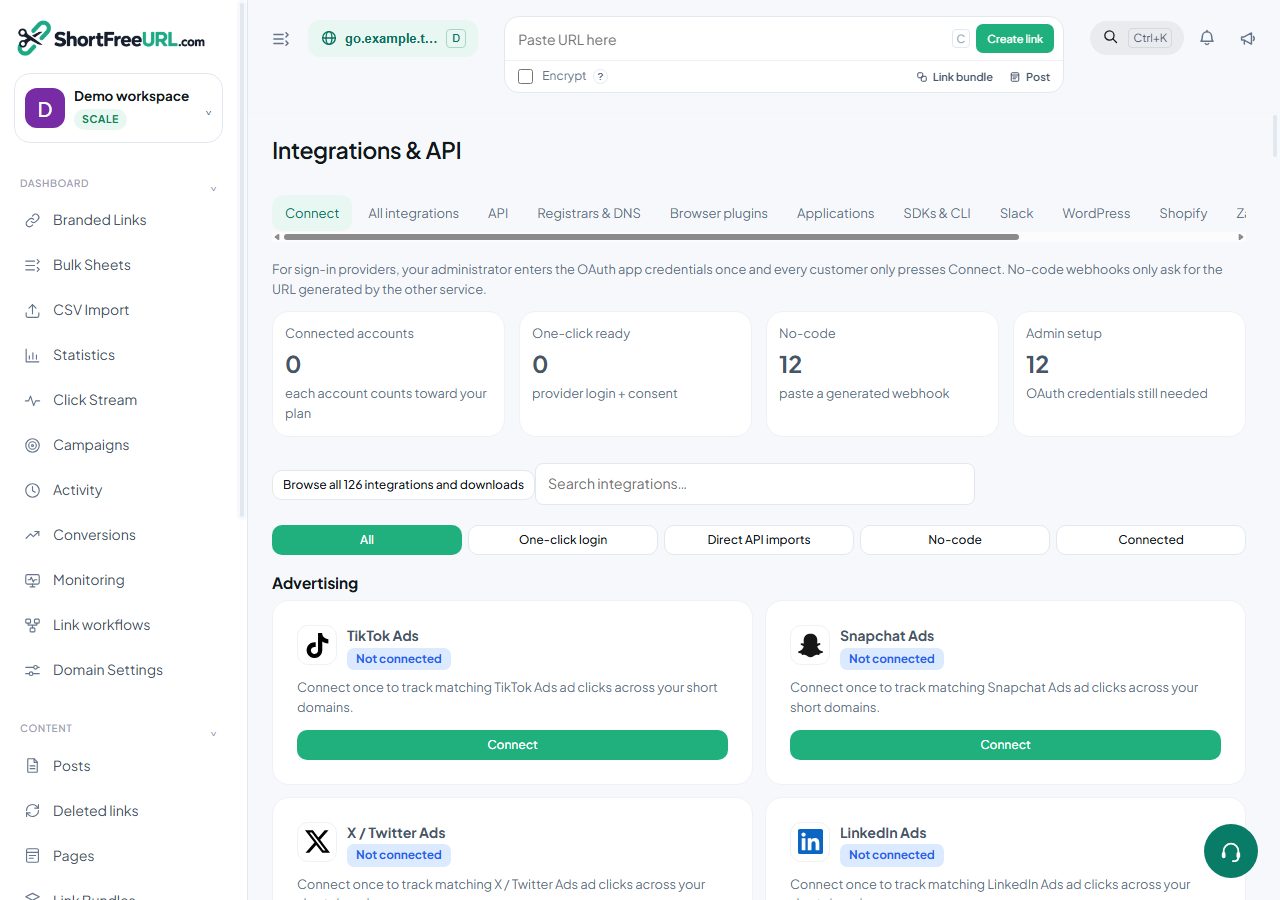
- Open Integrations & API. Review the article’s steps and your plan’s available controls.
- Save your changes, reopen the record and verify the saved result. For routing changes, check the short link with a test visit.