

1. Review your current subscription
Open Dashboard → Subscription → Ads, email marketing, plugins & AI. The table reads the current published plan settings. Google Ads, Google Analytics 4 and Meta tracking, plus Zapier, Make, Slack, Segment and WordPress, start on Starter, as do the other advertising connectors. Email marketing campaign drafts start on Growth. Administrators can change plan settings, so the live table is authoritative.
View current prices and allowances
2. Connect a provider account
Open Integrations & API and search for your provider. Choose Sign in for a configured OAuth connection, or enter the provider credentials requested by its setup form. A guided HTTP workflow needs Make, Zapier or n8n: open Setup guide and choose Full guide for numbered screenshots. Planned listings cannot connect yet.
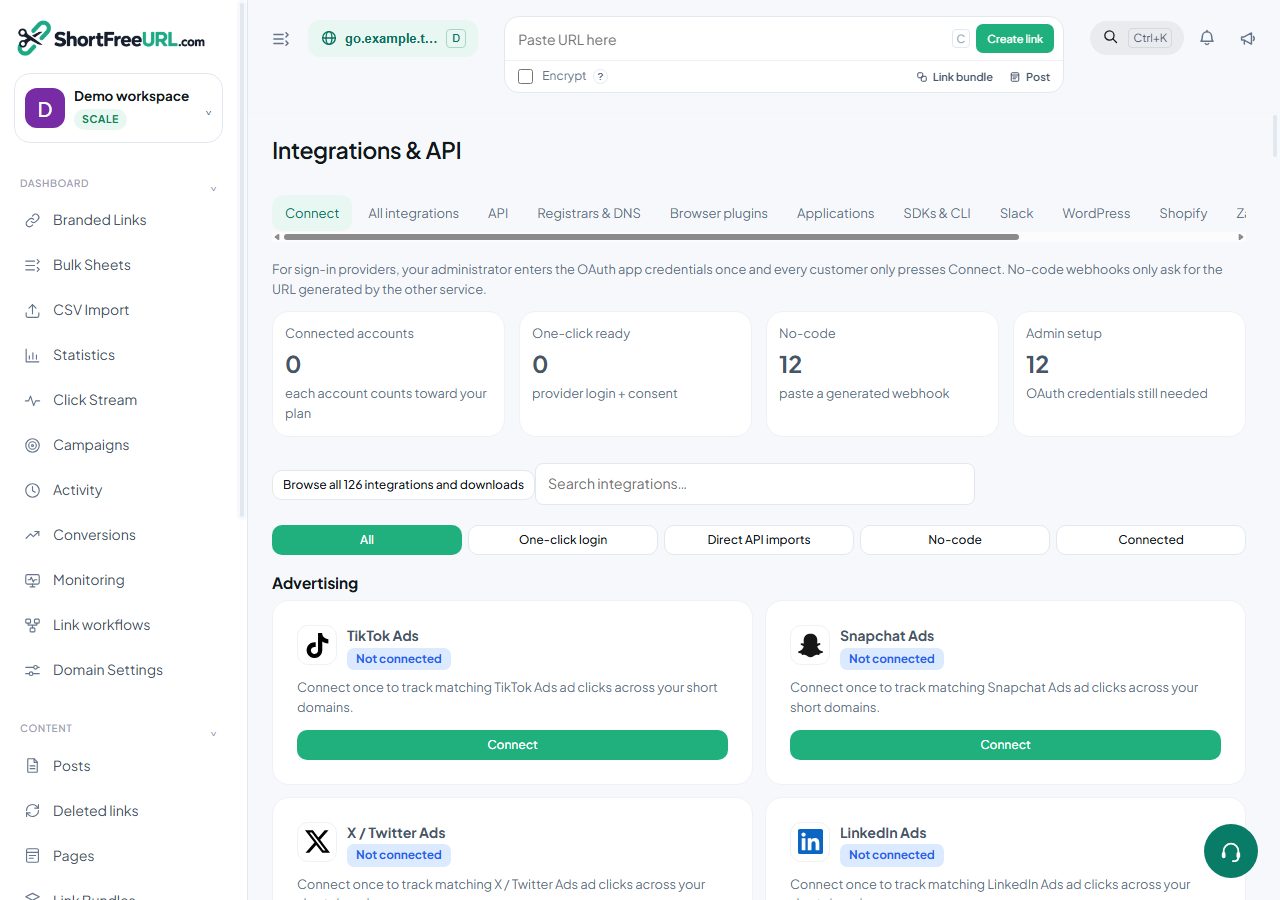
3. Add another account when you need it
Keep the first connection, choose Add another account and give the second a recognizable name. Each account consumes a connection slot. The default allowances are Free 3, Starter 10, Growth 25, Business 60 and Scale unlimited. Manage automatic delivery and disconnect separately for each account.
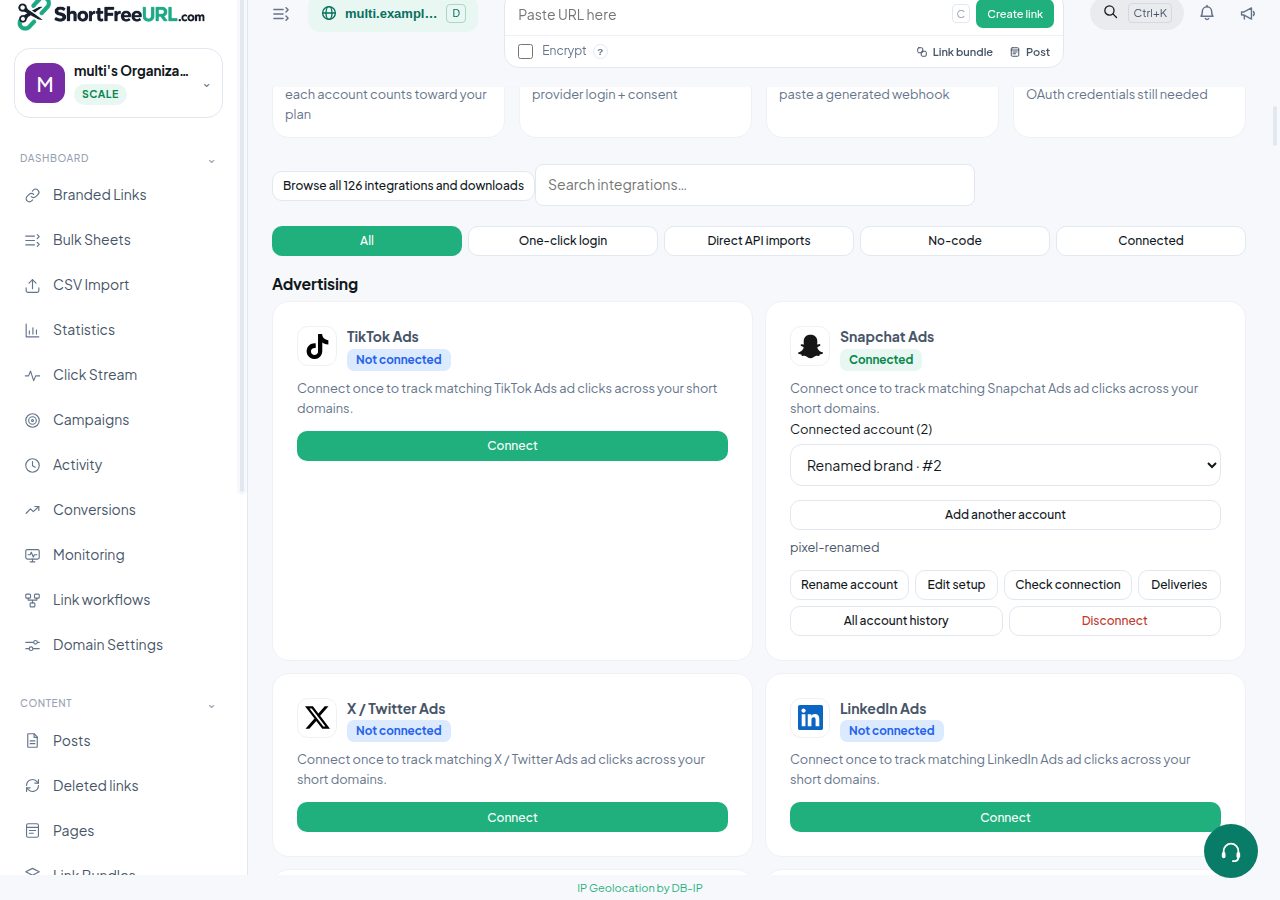
4. Verify tracking and campaign drafts
Configure tracking for a domain or connected account, make a controlled visit, then inspect Deliveries and the provider event dashboard. Free Google/Meta tracking is available at domain and connected-account level; per-link tracking overrides require the per-link tracking feature. Acceptance by a tracking API does not prove an ad conversion or purchase. For email marketing, select the audience and create a draft from a short link. Review and send in the email provider; creating a draft does not send a campaign.
5. Respect API and subscription allowances
SDKs, WordPress, MCP, CLI and Android use the same server permissions and quotas. API-created links consume a lifetime automation allowance separate from website-created links. On plan expiry or downgrade, paid integration actions stop and connections beyond the current allowance are blocked. Disconnecting an account revokes its generated API key; another account remains independently managed.
6. Ask for help from the documentation
Open any Docs or Developers page and choose Ask with AI. Ask a specific question with the feature or provider name. Answers cite current public guides, plans, integration setup and API reference. The assistant can show documentation matches when AI generation is unavailable. Never paste passwords, API keys, customer data or payment details. Account-specific help belongs in Support.
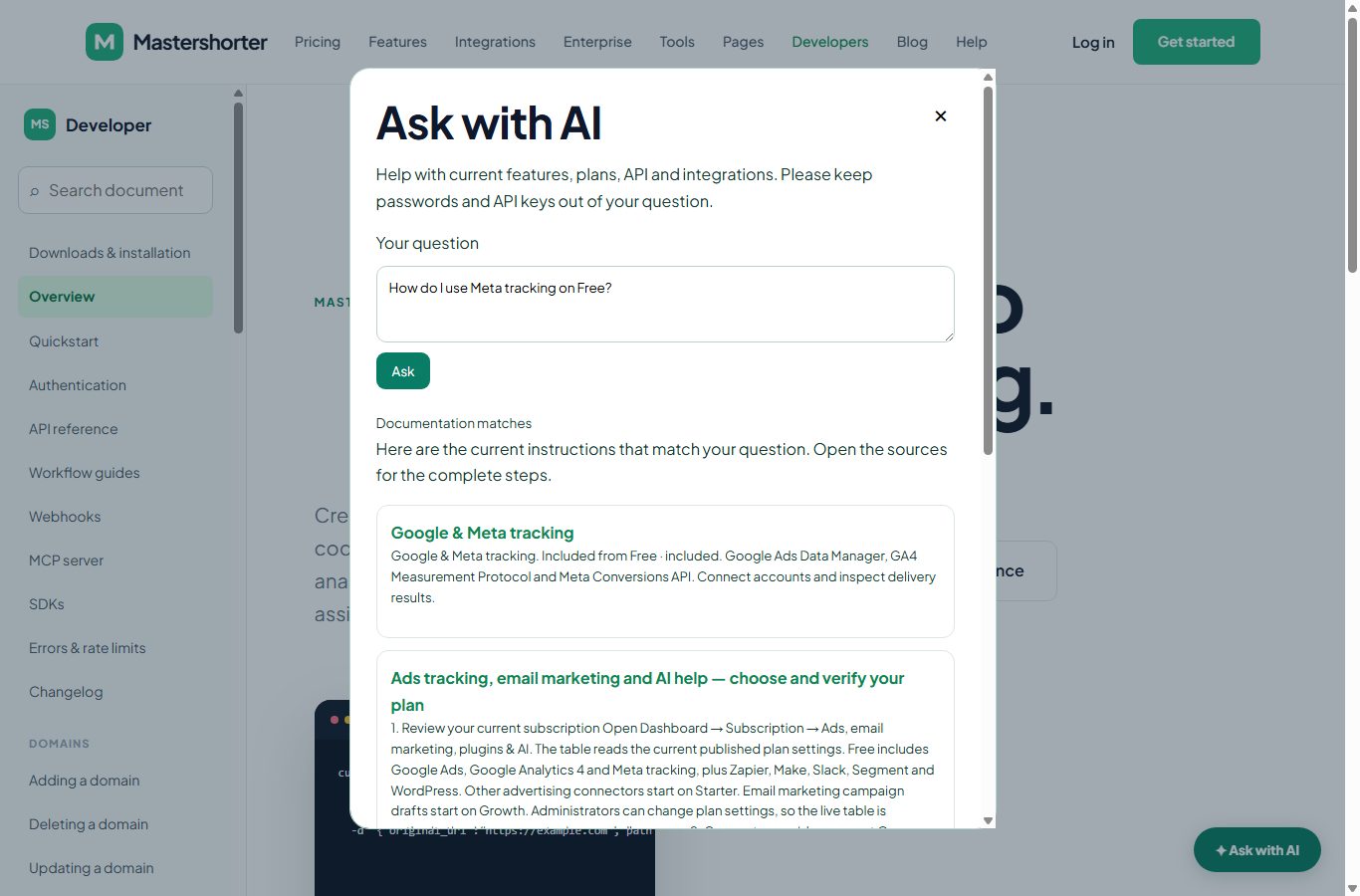
7. Help improve the guide
Use Helpful or Needs more detail below an answer. Administrators see aggregated guide feedback under AI Support → Knowledge base. Only reviewed knowledge is shared. Customer questions do not automatically become facts, change permissions or teach the assistant to execute arbitrary instructions. This is refreshed retrieval, not a claim that an external model has been retrained.
8. Keep Android and plugins current
The Android app loads the deployed website; Reload receives website features and plan changes. The Help button opens these developer guides. Native changes require installing the newly signed APK with the same signing identity. Use Settings → Check app update and follow the installation guide. WordPress and SDK downloads include the current plan and support guide.
Administrator controls
Manage plans controls prices, feature flags and connection limits. Integration provider controls pause a provider across accounts. AI Settings controls the documentation assistant and AI-generated answers; provider enablement, data-sharing consent, call ceilings, daily tokens and monthly spending limits also apply. Knowledge base shows the current index revision, document count, cache and guide feedback. Public docs questions have a maximum of five model attempts per client per UTC day, additionally limited by the configured AI budget. Further questions can still retrieve guides. The public assistant cannot run account tools. Support ticket repairs retain their own permission checks, verification and approval policies.
Find this in your dashboard
- Sign in and select the workspace and domain you want to manage.
- Open Integrations & API. Review the article’s steps and your plan’s available controls.
- Save your changes, reopen the record and verify the saved result. For routing changes, check the short link with a test visit.